
Online Dating Guides: From Choosing an App to Leaving It Cleanly
Dating App Icons and Notification Symbols: What They Mean
Dating app icons can signal messages, likes, reminders, or promotions, but they are not a universal code. Use this guide to interpret alerts carefully and tighten notification privacy.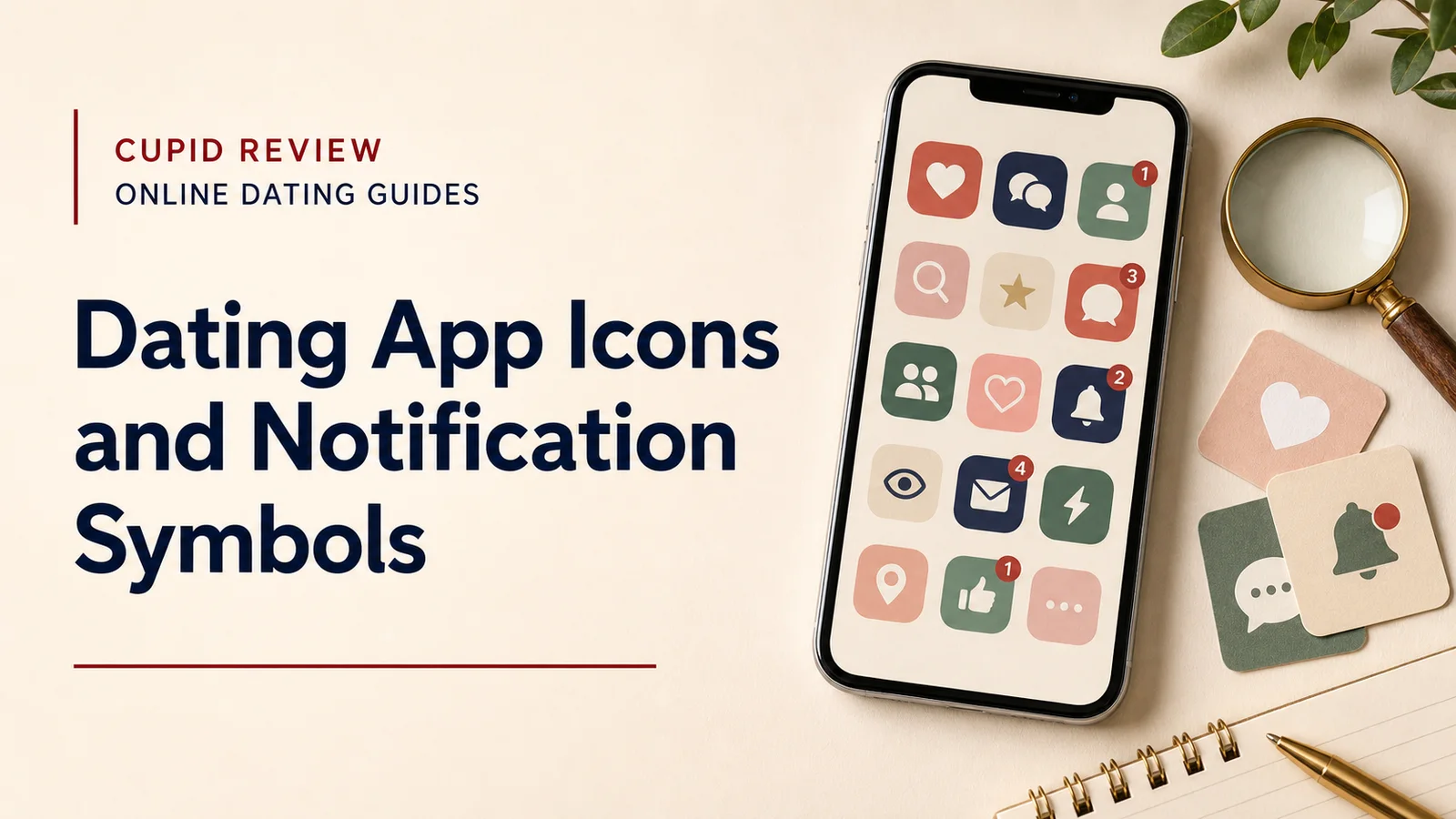
Dating app icons and notification symbols are not a reliable codebook for what is happening inside an app. A badge may mean an unread message, a like, a match, a reminder, a promotion, or a system alert, and the exact symbol can change after an update. The safest way to interpret a notification is to open the app from its normal icon, check the in-app activity area, and review notification settings rather than guessing from a lock-screen symbol.
What the most common notification signals usually mean
| Signal | What it can indicate | What to check |
|---|---|---|
| Number badge | Unread activity waiting inside the app | Open the app and check messages, likes, matches, and notices. |
| Heart or like-style symbol | A like, reaction, or product reminder | Confirm in the app; do not assume it means a new match. |
| Message bubble | A new message or conversation activity | Check whether the message is from an existing match or a service notice. |
| Bell or dot | General alert, reminder, or notification category | Review the app's notification center and device settings. |
| Generic app icon | The phone is hiding message detail on the lock screen | Unlock the device or adjust preview settings if you want more or less privacy. |
On both iPhone and Android, the operating system can limit what appears on the lock screen. That means two people using the same dating app can see different notification detail depending on device settings. If privacy around roommates, family, coworkers, or a shared device matters, review whether previews show message text, sender names, or only the app name.
Do not treat icons as evidence about a person
A dating-app icon on someone else's phone does not tell you whether the account is active, whether the notification is romantic, or when the app was last used. Apps can send reminders, product announcements, billing notices, and re-engagement messages. If the issue is about exclusivity or expectations in a relationship, a direct conversation is more useful than trying to decode a badge from across the room.
How to make notifications more private
- Open the phone's notification settings and find the dating app.
- Decide whether notifications should appear on the lock screen, notification center, banners, or only inside the app.
- Turn off message previews if the content could expose private conversations.
- Review badges separately if a visible number on the home screen is itself a privacy concern.
- Keep account security separate from notification privacy: use a unique password and available two-factor authentication.
Notification privacy is only one layer. A profile may also reveal location, work details, reused photos, social handles, or a predictable routine. Before changing alert settings, run the broader CupidReview dating app privacy checklist so the public profile and device settings support the same privacy goal.
If an unfamiliar symbol appears
Start with the least dramatic explanation. Open the app directly rather than tapping a suspicious push notification, especially if the alert asks you to sign in, pay, or verify financial information. Check the app's own inbox, account page, and subscription area. If a notification appears to be a security warning, use the official app or website instead of a link in the alert.
A practical notification audit
- Identify which alerts are useful: new messages, matches, safety notices, or billing reminders.
- Disable promotional alerts you routinely ignore so important signals are easier to notice.
- Hide previews if someone else can see your lock screen.
- Check whether the app is allowed to show sensitive content while the phone is locked.
- Review notification settings again after major app or operating-system updates.
If a notification leads to a new conversation, keep early contact on-platform until you are comfortable sharing another contact method. The online dating safety checklist covers privacy, scam patterns, reporting, and moving toward a first meeting. If a match asks for money or financial access, stop and use the romance-scam guidance rather than treating the request as normal dating activity.
FAQ
Can one icon tell me that I received a match?
Not reliably. Apps use different icons and can change them. Confirm the event inside the app.
Can I keep dating-app messages off my lock screen?
Yes on major mobile operating systems. You can usually disable lock-screen alerts or hide notification previews while keeping alerts elsewhere.
Why did a notification appear when I did not open the app?
Push notifications can be sent for messages, reminders, promotions, safety notices, and other account activity. Their presence alone does not prove recent manual use.
For a wider review of account exposure, pair notification settings with CupidReview's dating profile guide and privacy checklist. The goal is not to make the app invisible at all costs; it is to decide what information should be visible, to whom, and on which screen.
Sources and verification
Use the symbol in context, not in isolation
The same notification can mean different things depending on what happened just before it. If you recently changed a password, a security alert deserves different attention from a promotional badge. If you are actively messaging a match, a message icon may be expected, but you should still open the app through its normal launcher rather than trusting a link that asks for credentials. If the concern is another person's phone, remember that you cannot reliably reconstruct their dating activity from a badge. Device privacy settings, delayed pushes, promotional alerts, and account reminders all break that inference.
How this page was prepared
Reviewed by CupidReview Editorial Team. Claims, terminology, and time-sensitive details were checked against the sources listed below and the page was last updated August 29, 2026.
AI-assisted tools supported research organization or drafting; editorial review remained responsible for source selection and the published conclusions.